
New in SurfEnglish 1.4.0
Read your own PDF, EPUB and text with the translation below every sentence.
From version 1.4.0, SurfEnglish reads your own documents as well as news and webpages. Paste a passage, or import a TXT, Markdown, EPUB or text-based PDF file into My Documents. Then read it with the gestures you already use: swipe right on a sentence to place its translation directly below it, and double-tap a word for the meaning that fits the sentence.
Documents you paste or import are stored only on your device, and the whole file is never uploaded.
How to read your own document
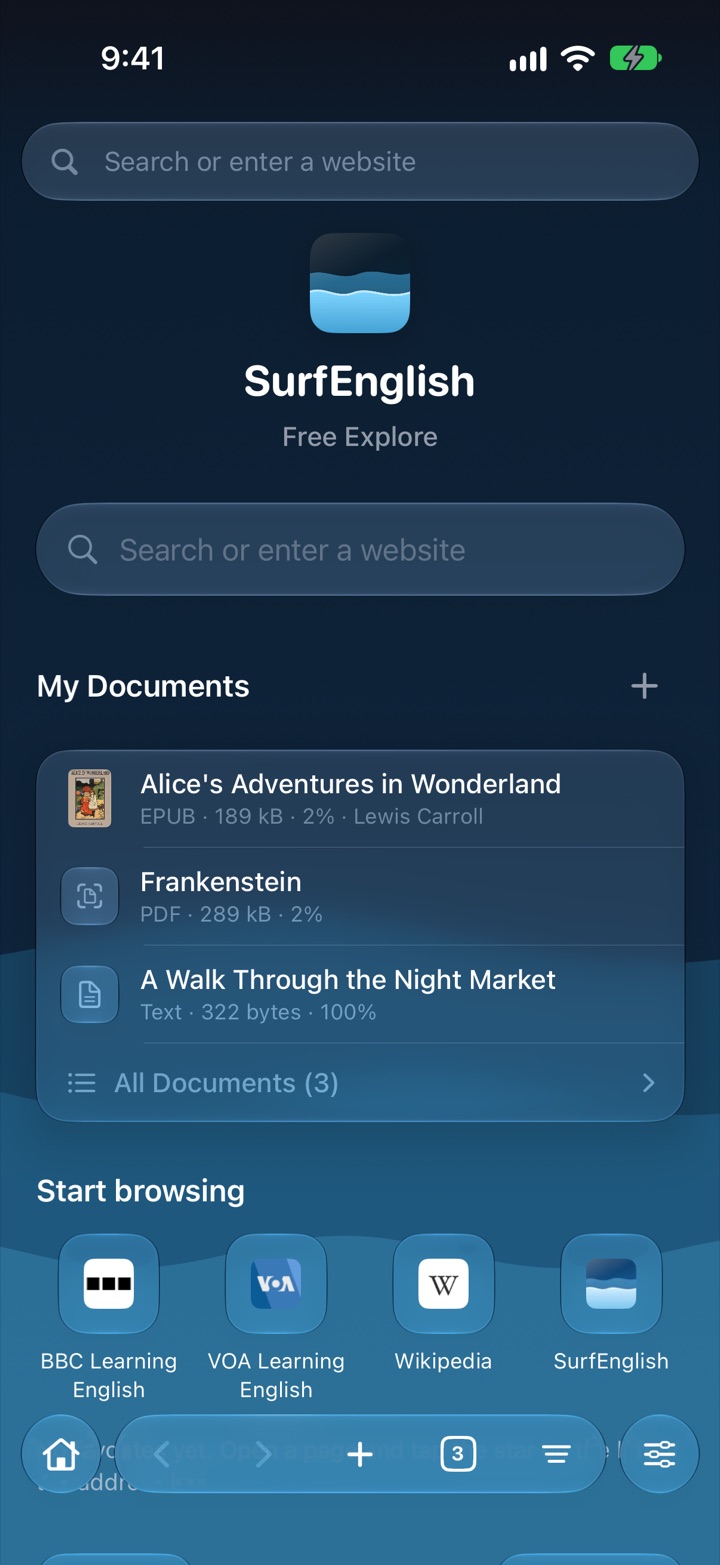
- Add it to My Documents.Open the Browse tab. My Documents sits on the start page, below the search field. Tap the + button next to My Documents, then choose Paste Text to paste or type a passage, or Choose File to pick a TXT, Markdown, EPUB or PDF file.
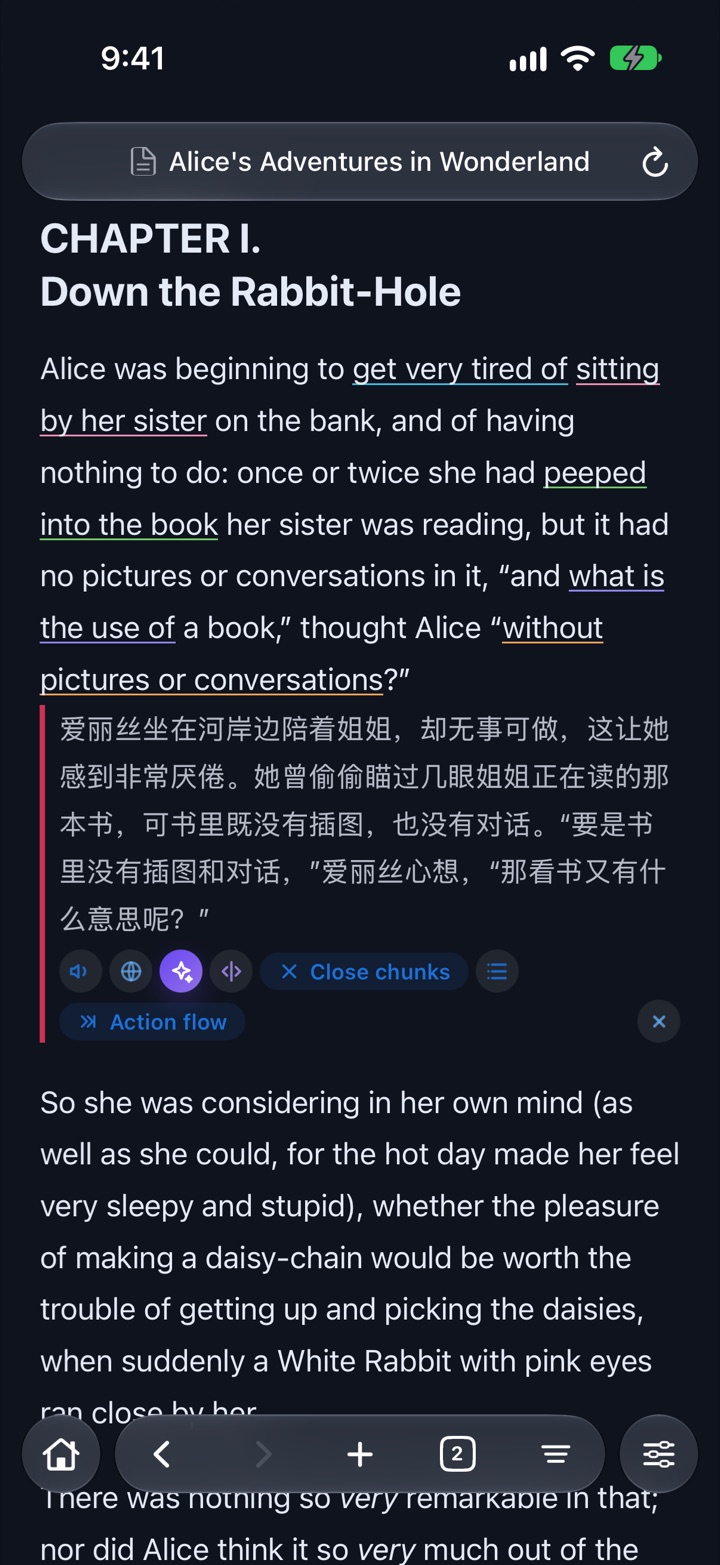
- Swipe to translate, double-tap to look up.The document opens like a webpage. Swipe right on a sentence and its translation appears directly below the original. Double-tap an unfamiliar word for its meaning in that sentence. Language chunks work here too.
- Come back whenever you like.Everything you add is kept in My Documents, where you can reopen, rename or delete it. A long document reopens where you stopped reading.
Supported formats and size limits
Version 1.4.0 reads five kinds of content. Importing and reading are free; translation and word lookup count toward the same daily limits as on webpages.
| Pasted text | Paste or type any passage and give it a title if you like. |
|---|---|
| TXT | Plain-text files up to 10 MB. |
| Markdown | Markdown files up to 10 MB, with headings and lists kept. |
| EPUB | Ebooks without copy protection (DRM), up to 100 MB. |
| PDFs that contain real text, up to 100 MB. The text is reflowed for reading, and the original pages stay available. |
Made for long reads
A book or a long report is not a news article, so documents come with a few tools of their own.
Sections and a table of contents
Long documents are split into sections automatically. Open Contents from the page menu to see the outline and jump to any part.
Your place, remembered
Close a document, or the app, and it reopens where you stopped reading.
The original PDF page
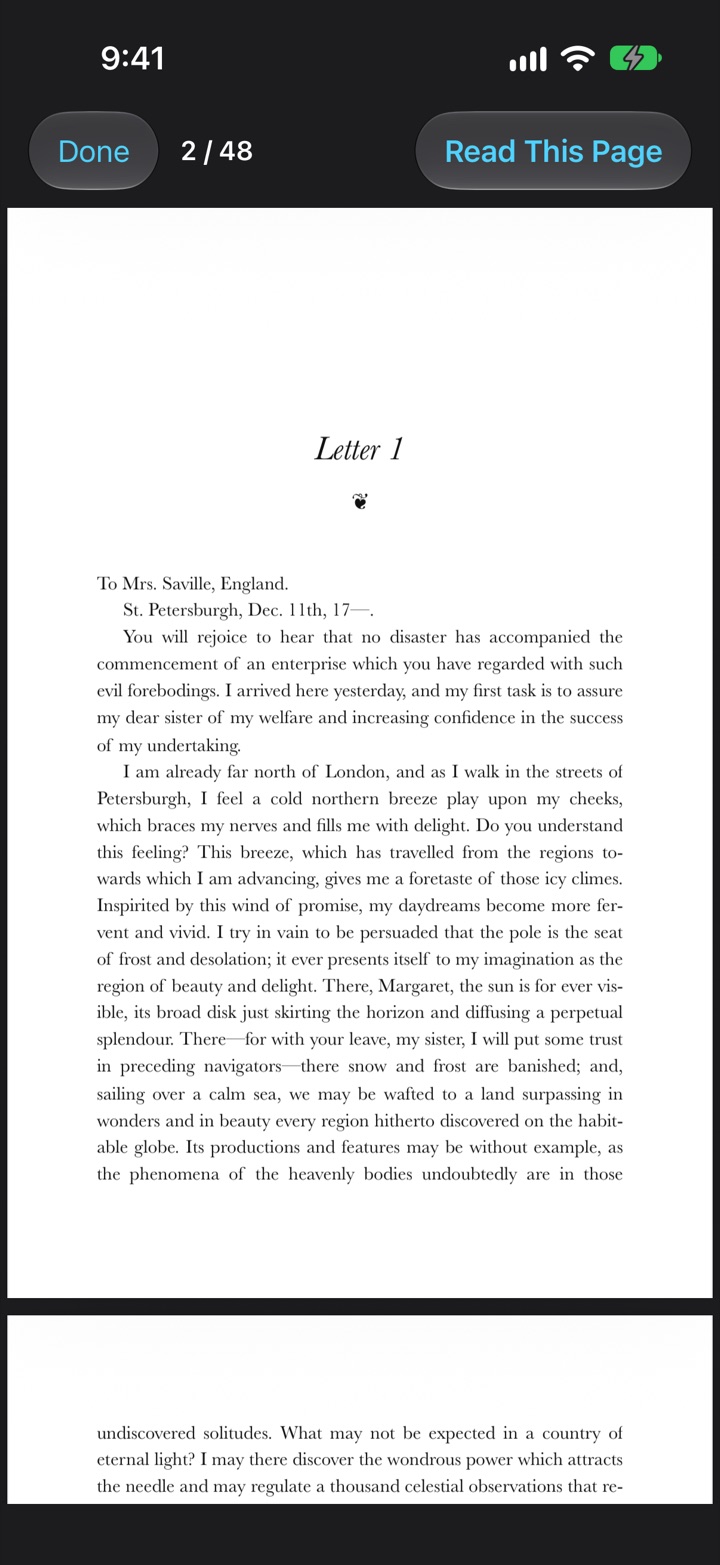
A PDF is reflowed into readable text, but sometimes you need the page as it was laid out. View Original shows it, and Read This Page takes you back to the text of that page.
One text size for everything
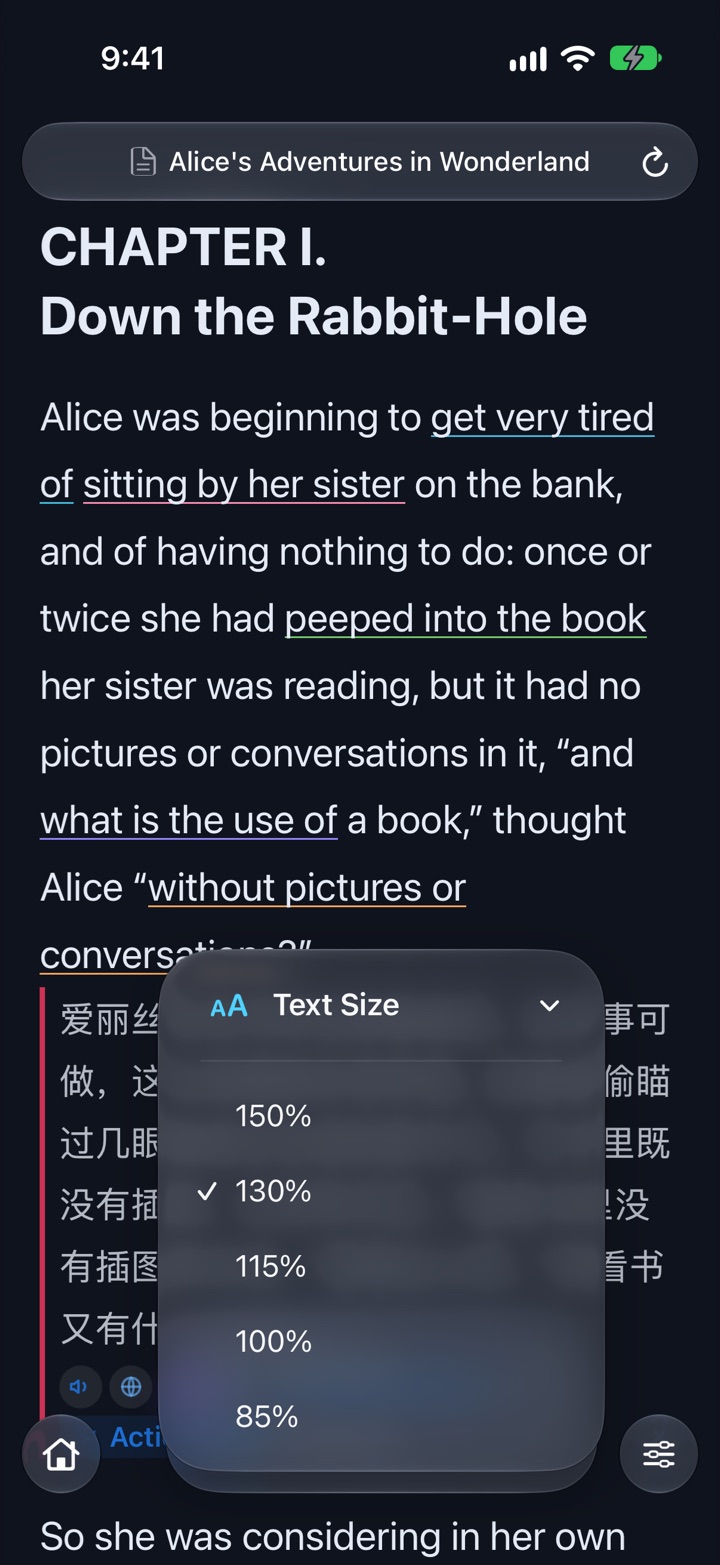
The new Text Size setting has five levels from 85% to 150% and applies to the Home feed, webpages and documents together.
Send text and files from other apps
You don’t have to start in SurfEnglish. In another app, select some text or a supported file, choose Share or Open With, and pick SurfEnglish. It is saved to My Documents and opened, ready to read.
Your documents stay on your iPhone
Documents you paste or import are stored on your device, and the whole file is never uploaded. As on a webpage, only the sentence you swipe to translate and the word you double-tap are sent to the translation and lookup services. Deleting a document removes it from your device; the words and sentences you saved from it stay in your learning library.
What it doesn’t do yet
This is a first version, and it has clear limits:
- Scanned PDFs have no text layer, so their pages are shown as images and can’t be translated sentence by sentence. Text recognition (OCR) is not available yet.
- Word (DOCX) and other file formats are not supported yet.
- Copy-protected (DRM) ebooks can’t be opened.
A note from the developer
To make studying easier, we’re trying something new: reading text you paste or documents you import. For now that means pasted text, TXT, Markdown, EPUB and text-based PDF. The feature is still experimental, and the list of supported documents is short. If there is a format you would like us to support, or something about the feature you would improve, please tell us from inside the app: tap the Help button at the top right of Home, then Feedback & Ideas. We’ll do our best to make it happen.
Jinlong, developer of SurfEnglish
Questions about reading your own documents
Which file formats can I import into SurfEnglish?
Pasted text, TXT, Markdown, EPUB and text-based PDF. EPUB and PDF files can be up to 100 MB, and text files up to 10 MB. Word (DOCX) and other formats are not supported yet.
Can SurfEnglish translate a scanned PDF?
No. A scanned PDF has no text layer, so SurfEnglish can only show its pages as images. Sentence translation and word lookup need real text, and text recognition (OCR) is not available yet.
Where do I find My Documents in the app?
On the start page of the Browse tab, below the search field. Tap the + button to paste text or choose a file. Your most recent documents are listed there, and All Documents opens the full list.
How do I open a file from another app in SurfEnglish?
In the other app, choose Share or Open With and pick SurfEnglish. This works for selected text and for TXT, Markdown, EPUB and PDF files. The item is saved to My Documents and opened.
Are my documents uploaded to a server?
No. Documents are stored on your iPhone and the whole file is never uploaded. Only the sentence you swipe to translate and the word you double-tap are sent to the translation and lookup services, the same as when you read a webpage.
Is reading my own documents free?
Yes. Importing and reading documents is free for everyone. Translation and word lookup in a document count toward the same daily limits as on webpages, and SurfEnglish Plus raises those limits.
Bring something you want to read
SurfEnglish is free to start on iPhone, works without an account, and keeps your documents on your device.
Download SurfEnglish